// 10-second answer
The spinning beach ball means one app's main thread is blocked. Press Cmd+Option+Esc, select the frozen app, and click Force Quit. If the entire system is frozen, the problem is typically RAM pressure or a disk I/O stall — not just one app.
- Is the beach ball showing in one app, or across the whole system?
- Does force-quitting the app make the beach ball go away?
- Does the same app beach-ball every time you open it?
- Has this been getting worse over days or weeks?
// jump to
You're staring at the spinning rainbow wheel, your cursor is useless, and you're wondering whether your work is gone. The beach ball isn't a random glitch — it's macOS telling you that a specific app stopped responding to input. In most cases, the fix takes less than ten seconds. The harder question is why it keeps happening, and that's what the rest of this post covers.
Disclosure: BundleHunt sells MacCleanse, MacPilot, and Memory Booster and earns a commission on each sale. Activity Monitor, Terminal commands, and the Force Quit dialog are free macOS built-ins.
What the beach ball actually means
The beach ball appears when an app's main thread stops responding to user input for a few seconds.
Every Mac app has a main thread that handles user input — clicks, keystrokes, scroll gestures. When that thread gets blocked (waiting on a network call, processing a large file, stuck in a loop), macOS replaces the cursor with the spinning wait cursor. The technical name is the "spinning wait cursor," but everyone calls it the beach ball or rainbow wheel.
Activity Monitor is where Apple says to locate and force quit apps that are not responding. If you can move your mouse to another app and it responds normally, only the beach-balling app is frozen — your system is fine.
The beach ball usually indicates a single app has stopped responding, though system-wide causes like RAM pressure or disk I/O stalls can also trigger it.
Why a fast Mac still gets beach balls
Beach balls have nothing to do with how fast your processor is. An M4 Max can still beach-ball if an app's main thread blocks on a synchronous network request, a locked file, or an internal deadlock. The spinning cursor indicates a blocked thread, not insufficient hardware. This is why adding RAM or upgrading your chip doesn't eliminate beach balls — it's an app-level problem, not a system-level one.
How to stop a beach ball right now
Force-quit the frozen app. Your other apps are typically unaffected.
The GUI path (Force Quit dialog)
- Press Cmd+Option+Esc to open the Force Quit Applications dialog.
- Select the unresponsive app, then click Force Quit.
- If you had unsaved work, check whether the app offers a recovery dialog when you relaunch it. Most modern Mac apps auto-save drafts.
If the Force Quit dialog doesn't appear (the whole system is frozen), press and hold the power button for up to 10 seconds, until the Mac turns off. This is a last resort — you'll lose unsaved work in all apps.
For more detail, open Activity Monitor (Applications > Utilities > Activity Monitor), click the CPU tab, and look for processes marked in red with "Not Responding." Select the process, click the X stop button, and choose Force Quit.
Terminal alternative: sample and kill
If you prefer Terminal, or if the GUI is too sluggish to use:
top -l 1 -o cpu | head -20
This shows the top CPU consumers. Find the frozen app's PID (the number in the first column).
To capture what the app was doing when it froze (useful for bug reports to the developer):
sample <PID> 5 -file ~/Desktop/beach-ball-sample.txt
To force-quit the app:
kill -9 <PID>
Replace <PID> with the actual process ID number. The -9 flag sends SIGKILL, which terminates the process immediately without giving it a chance to save.
What about unsaved work?
Most modern Mac apps (Pages, Numbers, Notes, Word, browsers) auto-save continuously. If you force-quit one of these, your work is typically recoverable. The risk apps are ones without auto-save — older software, some creative tools mid-export, and unsaved Terminal sessions. When in doubt, wait 30 seconds before force-quitting. Some beach balls resolve on their own once the blocking operation completes.
Four patterns and what causes each
Beach balls fall into four patterns, and each one points to a different root cause.
Pattern 1: One app freezes, everything else works
This is the most common scenario. The app's main thread is blocked — waiting on a network response, processing a large file, or hitting an internal bug. Force-quit the app and relaunch it. If it happens repeatedly with the same app, check for updates from the developer.
Common offenders: browsers with dozens of tabs, Photoshop or Lightroom during export, video editors mid-render, Slack or Teams after days of uptime.
Pattern 2: The whole system freezes
When every app beach-balls simultaneously, the cause is typically system-wide: memory pressure is red, the disk is nearly full, or a kernel-level process has stalled. Open Activity Monitor's Memory tab and check the pressure graph. If memory looks fine, check disk space:
- Click the Apple menu > About This Mac (or System Settings > General > Storage).
- If available space is under a few GB, your disk is the bottleneck. macOS needs free disk space for swap and temporary files.
If memory pressure stays red and you want to monitor it without keeping Activity Monitor open, a menu-bar tool can help.
Memory Booster on BundleHunt displays real-time memory pressure in the menu bar and can purge inactive memory with one click.
Not for: users experiencing beach balls in a single specific app — that is an app-level problem, not a RAM issue.
Full feature list
Memory Booster lives in the macOS menu bar and shows a real-time breakdown of RAM usage across App Memory, Wired Memory, and Compressed Memory categories. The one-click memory reclamation flushes inactive cached pages from RAM without requiring Terminal access. It also maintains a pressure history graph so you can see whether memory pressure is trending upward over a session or spiking at specific points. When system-wide beach balls are caused by memory pressure pushing macOS into heavy swap activity, reclaiming inactive memory can drop pressure from red back to green within seconds.
Disclosure: BundleHunt sells this; we earn a commission.
Pattern 3: The same app beach-balls every time
If one app consistently freezes on launch or during a specific action, its preferences or cache are likely corrupted. To reset them:
- Quit the app completely (Cmd+Q, not just closing the window).
- Open Finder, press Cmd+Shift+G, and go to
~/Library/Preferences/. - Find the file named after the app's bundle ID (e.g.,
com.developer.appname.plist). - Move it to your Desktop as a backup.
- Relaunch the app. It will create fresh preferences.
If the app works after this, the old preference file was the problem. If it still freezes, the issue is deeper — reinstalling the app is the next step.
Pattern 4: Beach balls getting worse over weeks
A gradual increase in beach balls typically points to a filling disk, a failing SSD, or accumulated cache bloat. Run these checks:
- Disk space: Check free space in About This Mac > Storage.
- Cache buildup: System and app caches can grow to tens of GB over time. Clearing them can reclaim space and fix I/O-related beach balls.
If disk clutter is the pattern, a cleanup tool can find the caches, logs, and leftover app data that are consuming space and causing I/O stalls.
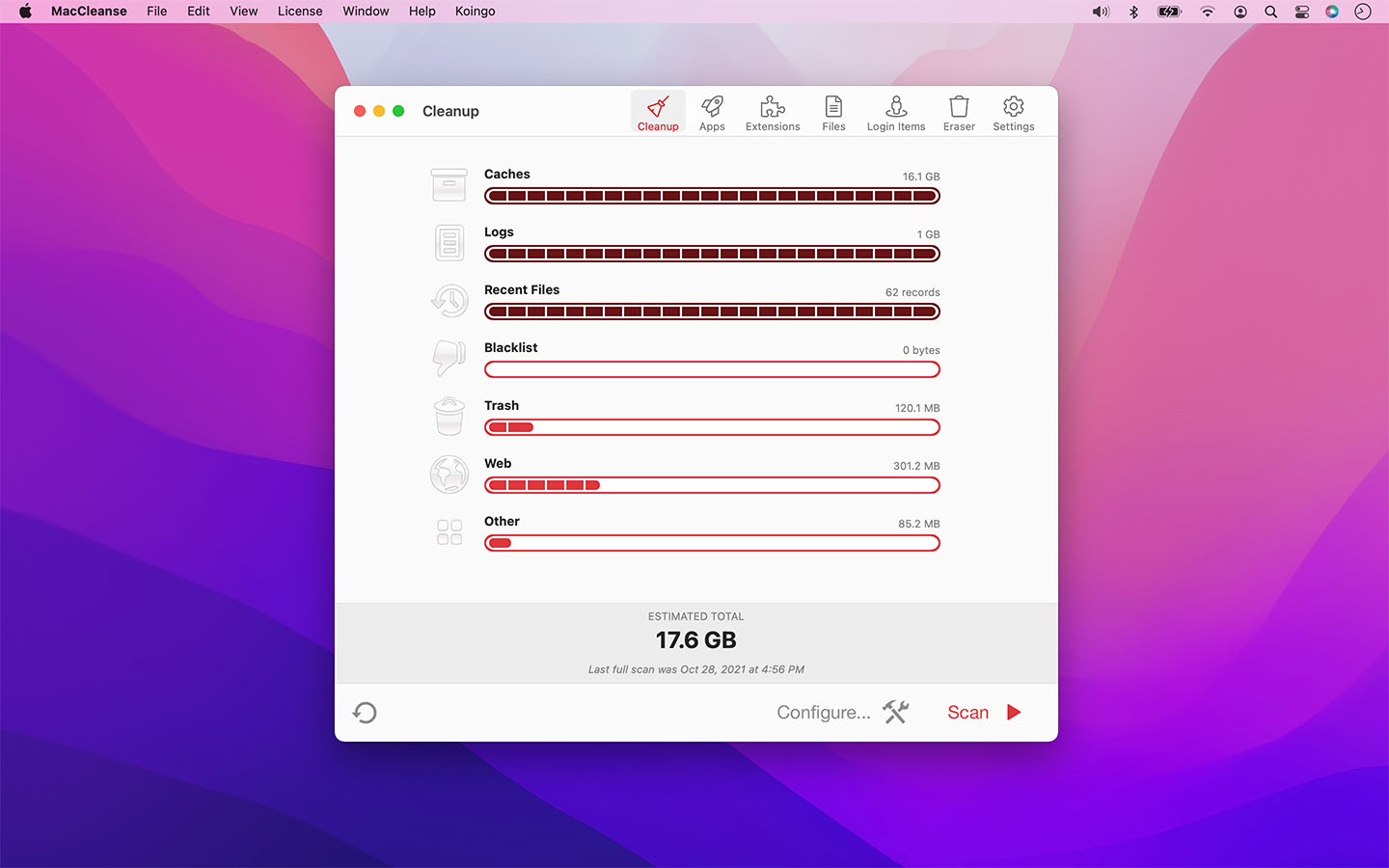
MacCleanse on BundleHunt scans for system caches, log files, language packs, and leftover app data. When a near-full disk is causing I/O stalls that trigger beach balls, clearing this clutter can free up space. It also fully removes apps and their associated files when you uninstall.
Not for: users whose beach balls are caused by a specific stuck app or memory pressure — disk cleanup only helps when a near-full disk is the root cause.
Full feature list
MacCleanse scans across multiple categories: system and user caches, log files, language packs for apps you never use, browser data, application leftovers, and mail downloads. Each category shows a size breakdown before deletion so you can review what will be removed. Its app removal mode finds and deletes all associated support files, launch agents, and preferences alongside the app itself — more thorough than dragging to Trash. It can be scheduled to run automatically on a recurring basis so disk space doesn't quietly fill back up between manual cleanups. The tool targets the same Library directories that Terminal-based cleanup reaches, but presents them in a reviewable list rather than requiring rm -rf commands.
Disclosure: BundleHunt sells this; we earn a commission.
If you've cleared disk space and reset preferences but a specific app still beach-balls, the cause may be a hidden macOS preference affecting that app's behavior. Most of these aren't accessible through System Settings.
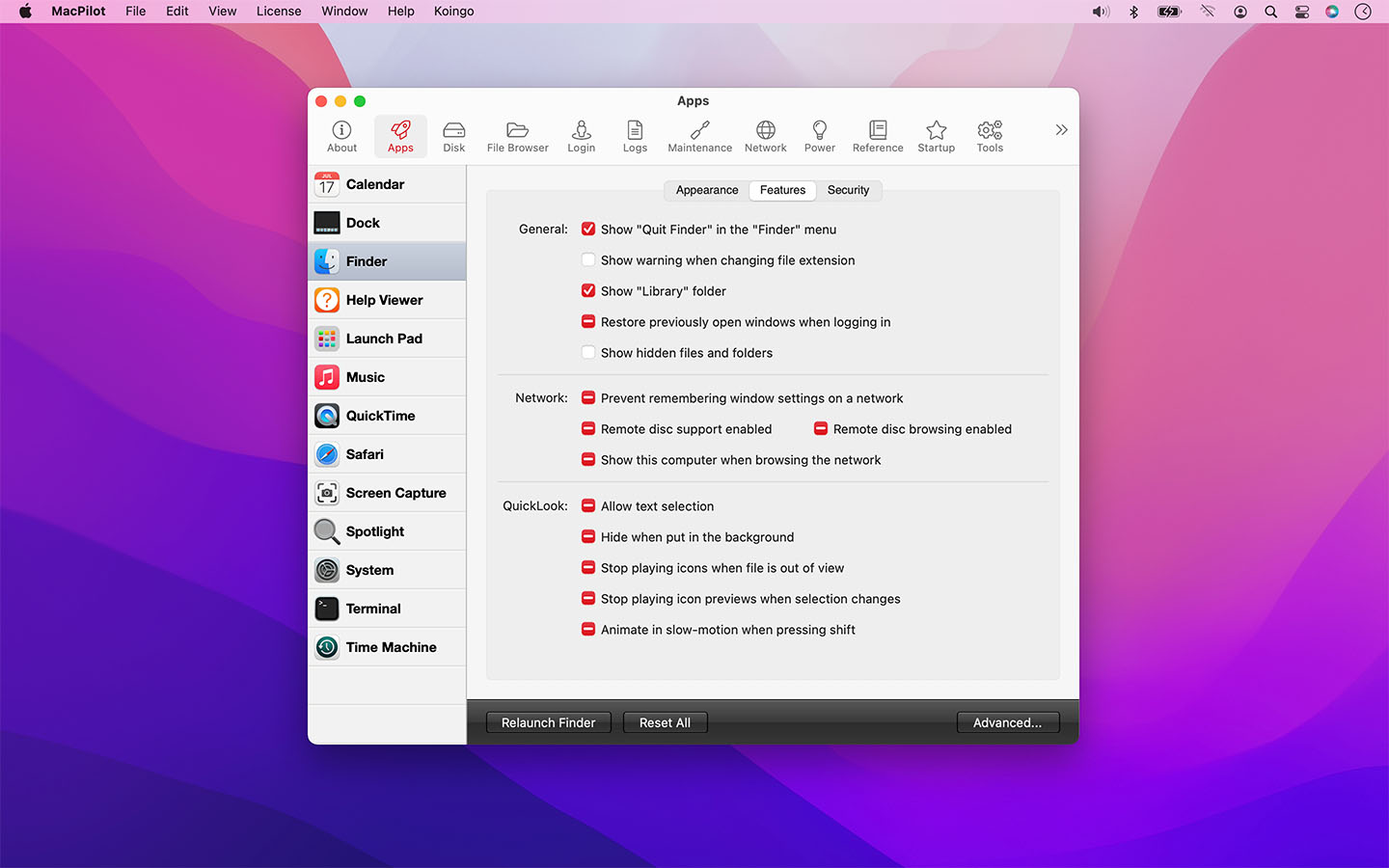
MacPilot on BundleHunt provides a GUI for hidden macOS preferences, including per-app and system-level settings that System Settings doesn't expose.
Not for: users who haven't yet tried the free steps — resetting app preferences and clearing disk space should come first.
Full feature list
MacPilot exposes over 1,200 hidden macOS preferences through a categorized interface. For persistent beach ball issues, the relevant sections include per-app behavior flags that control how aggressively an app is allowed to use system resources, process scheduling settings that affect foreground versus background prioritization, and Finder and UI preferences that influence how the window server handles drawing. It also covers launch agent management, which is relevant when a specific background process is causing repeated I/O stalls that trigger beach balls in unrelated apps. Settings are presented with plain-English descriptions rather than the raw defaults write keys they correspond to.
Disclosure: BundleHunt sells this; we earn a commission.
A few common questions
Activity Monitor is where Apple says to locate and force quit apps that are not responding.
Why does the beach ball still happen on a brand-new Mac? The beach ball indicates a blocked app thread, not insufficient hardware. A new Mac with a fast chip can still beach-ball if an app has a bug, a network request times out, or a file operation stalls. The hardware is not the bottleneck — the app is.
Will force-quitting lose my work? In most cases, no. Modern Mac apps auto-save continuously — Pages, Numbers, Notes, Word, and browsers all preserve your work. The main risk is apps without auto-save, or work that exists only in memory (unsaved Photoshop layers, an in-progress Terminal session). When unsure, wait 30 seconds to see if the app recovers on its own.
Is the beach ball the same as a system crash? No. A beach ball means one app is unresponsive. A system crash (kernel panic) shuts down the entire Mac and shows a "your computer restarted because of a problem" message on reboot. Beach balls are routine; kernel panics are serious.
Can I prevent beach balls entirely? Not really. They're a symptom of an app blocking its main thread, which can happen for many reasons. You can reduce their frequency by keeping your disk from getting too full, quitting apps you're not using, and keeping apps updated — but any app can beach-ball at any time.
Sources
- Apple Support: How to use Activity Monitor
- Apple Support: If an app freezes or quits unexpectedly
Last updated 2026-11-08.